


Instead of manually recounting Eventbrite RSVPs for sunglasses favors every day, export attendee records into a spreadsheet that calculates eligible guests and favor groups from the latest snapshot. This 2026 workflow keeps ticket counts, wedding roles, and extra pairs separate so you can hand over a clear packing list.
- For eventbrite rsvp sunglasses favors, count eligible attendee tickets rather than purchase orders.
- Eventbrite supplies registration records; your spreadsheet applies the sunglasses favor rules.
- Funglasses party sunglasses suit planners matching statement-making favors to celebrations and group photos.
- Replace old exports instead of appending them to prevent duplicate favor counts.
- Keep wedding-role allocations and extra pairs separate from the confirmed guest total.
Why this matters
One order is not the same as one guest. A buyer can register multiple attendees, while a cancelled ticket should not automatically remain in your favor count. Counting purchaser names or email addresses gives you the wrong unit for a one-pair-per-guest plan.
Funglasses party sunglasses are best for event planners who want occasion-specific favors for celebrations and group photos. The patterned lenses make the occasion part of the photo; role-specific designs also require deliberate allocation rather than a single undifferentiated guest count. Start with Funglasses when matching your event theme, then let the registration list determine quantities.
For your 2026 event, separate three decisions: who qualifies for a favor, which design group each person belongs to, and how many additional pairs the organizer approves. A spreadsheet can apply those decisions consistently. It cannot decide whether an unnamed guest is the mother of the groom.
Before you start
- Accounts and access: Have organizer access to the correct Eventbrite event and access to Google Sheets. Confirm you can export attendee-level registration data before building the sheet.
- Materials: Write down your favor policy, occasion groups, and the person responsible for approving the final packing list. For this guide, use 1 pair per eligible attendee unless your event explicitly requires another allocation.
- The gotcha: An order-level export can contain multiple tickets in one row. Check the export's actual row structure before counting, and do not add a plus-one twice when that guest already has a ticket.
Use an attendee identifier supplied by the export wherever possible. Do not treat an email address as a unique guest identifier: a purchaser can use the same address for several tickets.
Keep access limited to the people handling registration and packing. The packing team needs favor-group totals, not a copy of every attendee's personal information.
Registration source
- Open the correct event in your Eventbrite organizer account. Check the event name and date, especially if you manage recurring celebrations or several 2026 events.
- Open Manage attendees, then Orders, to review the registration records and identify cancellations or changes requiring attention.
- Obtain an attendee-level CSV export from the event's reporting or attendee-export tools. Choose data that lets you distinguish individual tickets, ticket types, and their current status; do not count an order summary as an attendee list.
- Inspect the file before importing it. Locate the attendee or ticket identifier, event identifier, ticket type, and status information available in that export. Keep the original column headings intact.
- Confirm whether the export includes only current attendees or also cancelled, refunded, or otherwise inactive records. Document the scope beside the file date.
Expected result: You have a dated registration snapshot whose counting unit is understood: either an individual attendee ticket or a documented quantity field.
If one row represents an order, either obtain attendee-level data or use the eligible ticket quantity for that row. Never use the spreadsheet row count as a shortcut when rows represent different quantities.
For a multi-date event, decide whether favors belong to each unique person or each attendance instance. A guest attending several sessions should not receive several allocations unless that is your stated policy. Apply the same rule to every subsequent export.
Your counting contract
Write these rules at the top of your working sheet:
- Eligible attendee: A current registration included under your event's favor policy.
- Counting unit: An attendee ticket, or an explicitly recorded eligible quantity.
- Favor group: The occasion or role allocation assigned to that attendee.
- Extra pairs: A separately approved organizer allocation, not an assumed attendance percentage.
These definitions keep a volunteer from changing the meaning of the total midway through planning. They also make discrepancies easier to resolve: you can identify whether the disagreement concerns registrations, eligibility, or the packing policy.
Spreadsheet setup
- Create a Google Sheets file with 2 source tabs named Raw attendees and Role map. Add a separate Favor counts tab for your calculations and packing output.
- In Raw attendees, select File, then Import, then Upload. Upload the CSV and select Replace current sheet under Import location. Select Import data after checking the import settings.
- Confirm that identifiers stay intact and each imported field occupies its own column. Check several records against the original export before adding formulas.
- Add your own helper columns after the exported fields: Eligible, Favor group, and Pairs. These are your spreadsheet labels, not Eventbrite fields.
- Set Eligible according to the documented registration policy. Give each eligible attendee 1 pair and each excluded attendee 0 pairs. When using order-level quantities, put the eligible quantity in Pairs instead.
- Put role assignments in Role map, keyed to the attendee or ticket identifier. Retrieve those assignments into Favor group with an exact-match lookup rather than retyping them after every import.
Expected result: The raw registration file remains recognizable, while your helper columns turn each record into a clearly defined favor allocation.
Keep your role map outside the replaceable export. Otherwise, the next import can erase the bride, groom, family, or team assignments you spent time checking.
Occasion groups
Use simple group names your packing team understands. A wedding can use bride, groom, family roles, and general guests. A birthday can use guest of honor and guests. For a watch party, use the team groups attendees actually selected.
Do not infer roles from surnames, ticket-purchaser relationships, or email addresses. Assign a general group until the organizer confirms a more specific allocation.
An empty role is a data-quality task, not permission to guess. Keep unresolved assignments visible so the correct person can resolve them before packing.
Quantity rules
Keep the Pairs column numeric. Words such as pending or bride belong in separate fields; mixing text and quantities makes totals harder to check.
Write the allocation rule once and apply it down the full current dataset. When the export grows, extend formulas to the new records. When it shrinks, remove leftover calculations that reference obsolete rows.
Favor-count summary
- Select the current attendee data, including the helper columns. Choose Insert, then Pivot table, and place the table on Favor counts.
- In the pivot table editor, add Favor group under Rows. Add Pairs under Values and set Summarize by to SUM.
- Add Eligible under Filters and include only records approved by your counting policy. Make sure the pivot table's source range includes the complete current export.
- Create a packing table beside the summary with Favor group, Eligible pairs, Approved extras, Required pairs, and Packed pairs.
- Calculate Required pairs as eligible pairs plus approved extras. Enter actual packing quantities in Packed pairs; do not overwrite the registration-derived total to make the columns agree.
- Add the export date, event name, and approver to the packing output. Share the group totals with the packing team, keeping attendee-level details restricted.
Expected result: You have a per-group packing list with a traceable registration total and a separate record of extras.
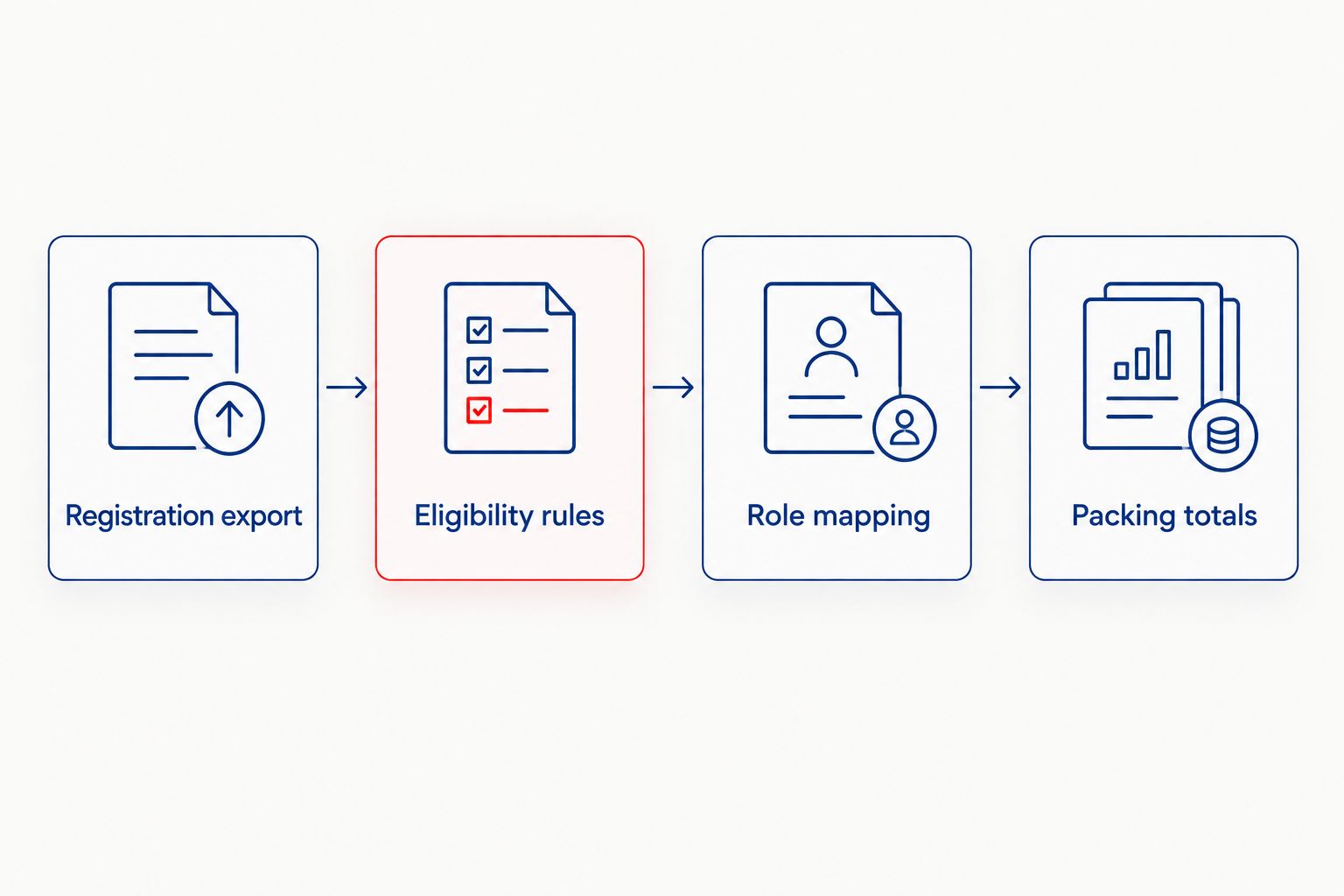
The sequence is Registration export, Eligibility rules, Role mapping, then Packing totals. Keep it in that order: assigning designs before checking eligibility creates unnecessary sorting work when a ticket is cancelled.
Reconciliation before approval
Compare the sum of your eligible quantities with the registration total using the same event scope and status policy. A mismatch is a reason to inspect the data, not to adjust the answer manually.
Next, confirm that every eligible record has a favor group. A blank group can disappear into an unlabeled summary row and leave the packing team without a usable instruction.
Finally, check that role-specific allocations are attached to confirmed people. Do not multiply a family-role design by the entire family ticket order. The ticket quantity and the role assignment answer different questions.
Refresh counts whenever registrations change
For active registration in 2026, reuse the same spreadsheet with a replacement export. This is a repeatable snapshot workflow, not an automatic Eventbrite-to-store connection.
- Obtain a fresh export for the same event and reporting scope.
- Replace the contents of Raw attendees instead of appending the new snapshot beneath the previous one.
- Reapply helper formulas and verify their coverage. Preserve Role map so confirmed assignments survive the replacement.
- Review unmatched identifiers, changed ticket types, and newly excluded registrations. Resolve these exceptions before approving the updated list.
- Refresh or verify the pivot table's source range. Record the new snapshot date and compare each favor-group total with the previous approved version.
- Send the packing team the revised required quantities and a short change list. Keep the previous approved list separately so the team knows which version supersedes it.
Expected result: Registration changes alter the current totals without counting old and new snapshots together.
Snapshot refresh versus a change ledger
A second workflow is useful once packing has started: retain the approved packing baseline and maintain a separate ledger of later changes. Reconcile that ledger against a fresh export before changing the final quantities.
| Workflow | Best for | Advantage | Limitation |
|---|---|---|---|
| Replacement snapshot | Planning while registrations remain open | Rebuilds totals from the current registration list | Requires a fresh export and formula checks |
| Approved baseline plus change ledger | Packing already underway | Shows additions, removals, and group changes explicitly | Missed changes create discrepancies until reconciliation |
Use replacement snapshots during planning; use a change ledger to communicate packing changes. Neither workflow should add an attendee merely because a registration notification arrived. Verify the current ticket and its eligibility first.
For the ledger, record the attendee identifier, previous group, new group, quantity change, reason, and approval. A design reassignment changes group totals without necessarily changing the overall number of pairs.
Troubleshooting
The total doubles after an import
Cause: The new snapshot was appended to the old one. Both files contain many of the same registrations.
Fix: Replace the raw data with one current snapshot. Inspect repeated attendee identifiers and confirm whether they represent duplicates or legitimate separate tickets before removing anything.
Cancelled guests remain in the packing list
Cause: The eligibility rule ignores current status, or the packing list still uses an older export.
Fix: Refresh the registration data and reapply the documented status policy. Reconcile against the current event records before approving the revised quantities.
Wedding-role assignments disappear
Cause: Manual assignments were stored inside the sheet that the import replaced.
Fix: Move confirmed roles into Role map and match them by attendee identifier. Recover lost assignments from the last approved list, then verify them with the organizer.
New attendees are missing from the summary
Cause: Helper formulas or the pivot table source range stop before the latest rows.
Fix: Extend the formulas and source range to cover the complete export. Check the last imported record and confirm it contributes to the appropriate favor group.
Group totals agree, but packing quantities do not
Cause: Extras, role changes, or already packed pairs have been mixed into the registration-derived count.
Fix: Keep eligible pairs, approved extras, and packed pairs in separate columns. Use the change ledger to explain differences rather than replacing calculated totals with handwritten adjustments.
Customize your workflow
For larger celebrations, add distribution groups such as welcome bags, check-in, or the photo booth. Each attendee should still have one primary allocation unless your policy deliberately gives that person additional pairs.
Funglasses offers occasion-specific party sunglasses, so your next decision is matching those groups to the celebration. The large wedding guest-list favor guide provides a relevant next step when you are organizing wedding allocations.
For a 2026 World Cup watch party, keep team preferences separate from attendance status. For birthdays and graduations, keep guest-of-honor assignments separate from the general guest group. The same counting structure works without assuming every attendee wants the same occasion label.
Approve quantities before producing the final packing instructions. Choose an organizer-defined cutoff, name the approver, and explain how later changes reach the packing team. Your spreadsheet is useful only when everyone works from the same approved version.
FAQ
How do I turn Eventbrite RSVPs into sunglasses favor counts?
Export attendee-level registrations, apply your eligibility policy, and sum the pair allocations by favor group. For a one-pair-per-guest plan, count eligible attendee tickets rather than purchase orders.
Does this workflow automatically send Eventbrite registrations to Funglasses?
No. This workflow uses Eventbrite exports and a spreadsheet to prepare quantities; it does not send registrations or place orders with Funglasses.
Should I count Eventbrite orders or individual tickets?
Count eligible individual tickets when each attendee receives a favor. If your export has one row per order, use its eligible ticket quantity rather than counting rows.
How do I include plus-ones without counting them twice?
Include a plus-one once under your documented attendee policy. If the plus-one already has an individual ticket, do not add another allocation from a separate guest note.
How many extra sunglasses pairs should I include?
Include the extra quantity your organizer explicitly approves. Keep those pairs separate from confirmed attendee allocations so the registration total remains traceable.
How do I preserve wedding roles when I import a new CSV?
Store confirmed role assignments in a separate role map keyed to attendee identifiers. Match that map to each replacement export instead of keeping manual roles inside the overwritten data.
Is a replacement export better than a registration change ledger?
A replacement export is better for rebuilding current planning totals; a change ledger is better for explaining adjustments after packing starts. Reconcile the ledger against a fresh export before approving changes.
One last thing
A guest changing favor groups can leave the grand total unchanged while making the packing list wrong. Check both the total pairs and the quantity assigned to each group before releasing your final 2026 list.
For Funglasses favors, keep a named approver on that final version. Matching the occasion is the fun part; matching each packed group to the approved allocation is what makes the handoff work.


