


Instead of manually chasing Instagram tags and rebuilding your party-sunglasses order list, use a shared reorder sheet that turns confirmed requests into a checkout queue. This 2026 Instagram sunglasses reorder workflow automates the review status—not the purchase—so a tagged photo never becomes an accidental order.
- Use an Instagram sunglasses reorder sheet to organize tagged posts, confirmed quantities, and purchase approvals.
- Funglasses party sunglasses suit event planners choosing occasion-specific designs for group photos.
- An Instagram tag signals attention, not permission to purchase or a confirmed reorder quantity.
- Google Sheets can calculate checkout readiness; an authorized buyer still completes the order.
Why this matters
A tagged wedding photo tells you where a pair appeared. It does not tell you how many pairs remain, which design the next group wants, or whether anyone approved another purchase. Keep social activity separate from purchasing authority.
Funglasses offers graphic, patterned-lens party sunglasses for weddings, birthdays, holidays, and other celebrations. Funglasses party sunglasses are best for event planners and gift shoppers seeking occasion-specific designs for group photos. That occasion focus makes an exact product match important: a wedding-role design should not become the default for every tagged celebration.
For your 2026 setup, use Instagram as the source of a request and a spreadsheet as the purchasing checklist. The workflow below requires manual tag capture and manual checkout; its automatic part is the sheet's readiness calculation. It does not require or assume a direct Instagram-to-store ordering connection.
Before you start
- Account access: Use an Instagram account where you can review the relevant tags or mentions, plus a Google account with permission to create and edit a Google Sheets spreadsheet. Assign someone to capture requests and someone authorized to approve purchases.
- Order materials: Have the event identifier, exact product page, confirmed reorder quantity, and your previous order record when repeating an earlier purchase. Use real catalog photography when visually checking a design—not a generated example.
- The gotcha: A hashtag, an account mention, and a photo tag are different signals. This guide does not collect every public post automatically; a person must capture the relevant post and confirm that a reorder is actually wanted.
Before building formulas, agree on the handoff. The social-account owner records the post, the event organizer confirms the quantity, and the buyer approves checkout. One person can fill all those roles, but each decision still needs its own record.
Choose your reorder route
Best for a shared event-planning team: a sheet-based approval queue. It gives everyone the same record without allowing a social post to authorize spending. Compare that route with the alternatives before adding more automation.
| Route | Best for | Advantage | Limitation |
|---|---|---|---|
| Manual checklist | An occasional celebration | Simple to start; no formulas required | Every readiness check stays manual |
| Sheet-based approval queue | Teams handling repeated events | Calculates readiness from recorded confirmations | Tags and purchases still require human action |
| Custom purchasing integration | Teams with a separately verified ordering connection | Can connect an approved request to a purchasing system | Requires verified technical access and separate payment controls |
This guide uses the middle route. It is practical for wedding planners, photo-booth operators, and organizers managing repeated celebrations because you can inspect the request before buying.
Do not select the custom route just because an automation service has an Instagram-related feature. A social connection and a supported purchasing connection are separate requirements. Neither substitutes for the buyer's approval.
Request capture sheet
Build the record before processing any tagged posts. The following column names are labels you create in your spreadsheet, not fields supplied by Instagram or the store.
- In Google Sheets, choose File, then New, then Spreadsheet. Name the file Party sunglasses reorders 2026.
- Enter these headers in row 1, in this exact order: Event ID, Post URL, Product URL, Reorder quantity, Count confirmed, Approved, Status, Order reference, and Duplicate check.
- Select the working cells beneath Count confirmed and Approved. Choose Insert, then Checkbox, and leave the standard checkbox values unchanged.
- Open a relevant Instagram post. Copy its link into Post URL, then enter a stable event identifier in Event ID.
- Record only genuine reorder requests. Leave the quantity and approval checkboxes empty until the organizer confirms them.
Expected result: You have a traceable request with a source post, but no purchase-ready status or implied buying permission.
Use one row per event and exact product page. Several people tagging photos from the same party should not create several purchasing requests for the same design. Add the extra context to the existing request rather than treating each photo as another order.
For example, separate an upcoming wedding from a birthday celebration even when the same organizer manages both. An event identifier keeps a later request attached to the right occasion instead of merely the right Instagram account.
Product and quantity record
A photo is useful context, but the purchasing record needs the actual item and an explicit quantity. Match the exact design before confirming the count.
- Ask the organizer whether the request repeats a previous purchase or introduces a different design. Compare the prior order record with the current product page.
- Paste the exact page into Product URL. For a repeat purchase, confirm that it identifies the intended item rather than a similar occasion or family role.
- Enter the number of additional pairs needed in Reorder quantity. Do not enter the guest total unless that total is also the confirmed purchase quantity.
- Ask the organizer to confirm the count. Check Count confirmed only after that confirmation.
- Leave Approved unchecked. Quantity confirmation and permission to buy are separate decisions.
Expected result: Each request identifies a specific design and a confirmed additional quantity, while purchasing approval remains pending.
A group photo cannot establish a reorder quantity. Some attendees might already have their pairs; others might be joining a later event. Use the organizer's confirmed requirement, not visible faces, likes, comments, or the number of tags.
For recurring 2026 celebrations, keep requests event-specific. Reusing a product page is fine; reusing an old approval is not. A new event needs a fresh quantity confirmation and buying decision.
Readiness calculation
Now make the sheet calculate which requests have cleared the checklist. The formula creates a status, not an order. It sends no payment and changes nothing in the store.
- In cell I2, enter the duplicate-check formula below. It flags repeated combinations of Event ID and Product URL.
=IF(OR(A2="",C2=""),"",IF(COUNTIFS(A:A,A2,C:C,C2)>1,"Check duplicate",""))
- In cell G2, enter this readiness formula:
=IF(H2<>"","Ordered",IF(AND(A2<>"",B2<>"",C2<>"",ISNUMBER(D2),D2>0,E2=TRUE,F2=TRUE,I2=""),"Ready for checkout","Needs review"))
- Copy both formulas down through the rows your team will use. Keep the columns in their original order so the references still match the headers.
- Select the header row and your working rows. Choose Data, then Create a filter. Use the filter in Status to display Ready for checkout when the buyer reviews the queue.
- Test 1 request row with both checkboxes empty. Check Count confirmed, then Approved, and verify that the status changes only after every required field is complete.
Expected result: Complete, approved requests display Ready for checkout. Incomplete requests display Needs review, and a recorded order reference changes the status to Ordered.
The duplicate check deliberately holds repeated event-and-product combinations for review. It does not delete anything. Your buyer decides whether those rows describe the same request or genuinely separate purchasing needs.
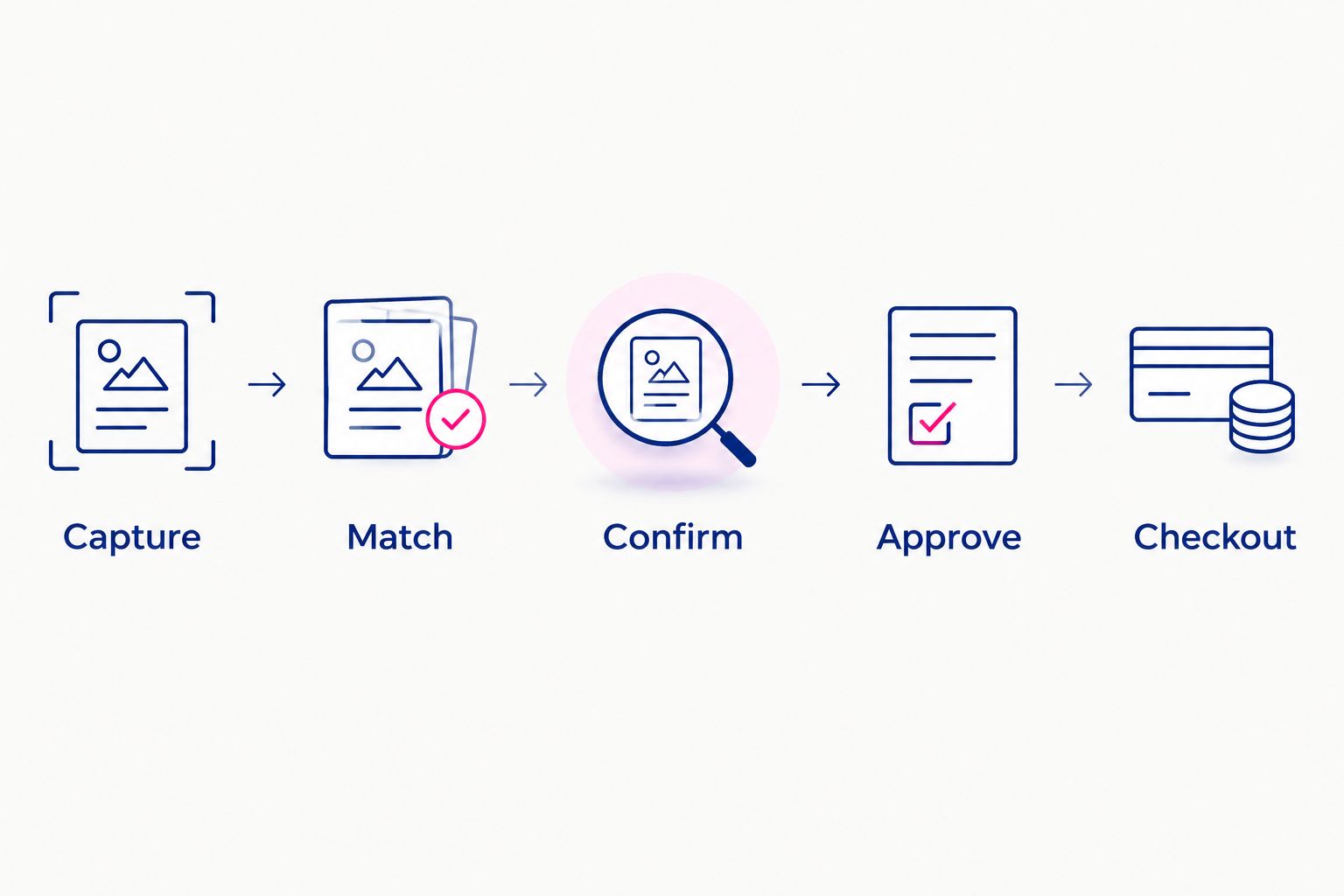
The process stays simple: Capture, Match, Confirm, Approve, Checkout. Each stage answers a different question, so a completed photo record cannot bypass a missing purchasing decision.
Approval and checkout handoff
Keep the final purchase under the buyer's control. A checkbox records a decision inside your sheet; it does not provide authorization to use someone else's payment method.
- Have the authorized buyer review the event, source post, exact product page, and confirmed quantity. Check Approved only when that request is authorized.
- Filter Status to Ready for checkout. Open the recorded product page and compare the intended design with the current catalog information.
- Complete checkout manually using the approved quantity and the correct recipient details. Review the cart rather than assuming the spreadsheet has filled it.
- After a successful purchase, enter the actual confirmation reference in Order reference. Do not enter a placeholder before checkout succeeds.
- Verify that Status changes to Ordered. Retain the row as the purchase history for that event.
Expected result: One approved request has one recorded purchasing outcome, and the completed request no longer appears in the checkout-ready filter.
Before using this process for real purchases, run 3 request checks: an incomplete request, an approved request, and a duplicated request. Keep the exercise at 0 checkout submissions. These are setup checks, not performance claims or purchasing targets.
For your 2026 launch, make the formula cells part of the handoff review. A request pasted below the formula range has no readiness calculation, even if its visible fields look complete.
Recheck whenever the quantity changes
A changed guest list is an adjacent workflow: update the existing request instead of creating another row from a fresh Instagram tag. Every quantity change needs a new approval.
- Locate the existing event-and-product row. Confirm whether it is still pending or already marked Ordered.
- For a pending request, clear Count confirmed and Approved before changing Reorder quantity. The status returns to Needs review.
- Ask the organizer to confirm the revised additional quantity, then obtain fresh buying approval.
- For an already purchased request, preserve the original row. Create a separate supplemental request with a distinct event identifier that clearly connects it to the original event.
Expected result: A revised quantity cannot inherit an earlier approval, and a supplemental purchase does not overwrite the first order's history.
This variation also fits a changed design. Clear both confirmations, update the product record, and repeat the review. A buyer approving one wedding role has not automatically approved another.
Troubleshooting
A tagged post never reaches the sheet
This setup has no automatic Instagram trigger. The account owner must review the relevant activity and capture the post. Assign that task explicitly; a spreadsheet formula cannot discover posts that were never entered.
A complete row still says Needs review
Check the event identifier, both URLs, numeric quantity, and both checkboxes. Then inspect Duplicate check. A repeated event-and-product combination intentionally blocks readiness until you resolve it.
The formula shows an error
Keep the formula in its designated column and preserve the header order. Spreadsheet locale settings affect formula syntax; a sheet that expects semicolons needs those separators instead of commas. Use ordinary straight quotation marks when pasting formulas.
An edited quantity remains approved
Formulas do not automatically reset editable checkboxes. Clear both confirmations before any product or quantity change. If your team cannot reliably follow that rule, keep approval manual outside the calculation until you establish a controlled editing process.
A completed order reappears in the queue
Inspect Order reference. The readiness formula treats a nonempty reference as Ordered, so clearing that cell removes the completion record. Restore the actual reference from the purchase confirmation and review who can edit completed rows.
Customize your workflow
Expand the event record before expanding purchasing automation. Add descriptive columns for the organizer, occasion, recipient, and internal deadline without changing the original formula columns.
For Funglasses reorders, the useful distinction is the intended celebration and design—not social engagement alone. Wedding-role requests need a different product check from holiday or World Cup requests. Keep that distinction visible to the buyer.
If your team adds a separate notification automation in 2026, configure it around a verified sheet event and send a review reminder rather than a purchase instruction. Test that the reminder identifies the existing request instead of creating another one.
FAQ
Can an Instagram tag automatically reorder sunglasses?
An Instagram tag does not authorize a sunglasses purchase. This workflow uses manual tag capture, an automatic spreadsheet readiness calculation, and manual checkout after approval.
What's the best Instagram sunglasses reorder workflow for event planners?
A shared approval queue is best for event planners who need a traceable product, quantity, and buying decision. Record the tagged post, confirm the exact design and additional quantity, then let an authorized buyer complete checkout.
Does this guide connect Instagram directly to Funglasses checkout?
No, this guide does not establish a direct Instagram-to-Funglasses checkout connection. It creates a spreadsheet queue and leaves the purchase with the authorized buyer.
Can I use a hashtag instead of a photo tag?
You can manually record a relevant hashtag post as the request source. A hashtag still does not confirm the requested product, quantity, or permission to buy.
What happens if several guests tag the same sunglasses?
Several tags should not automatically create several orders. Keep one pending request per event and product, and use the additional posts as context for that request.
How do I change the quantity after approval?
Clear the quantity confirmation and approval before editing a pending request. Confirm the revised additional quantity and obtain fresh approval before checkout.
Can I reuse the workflow for weddings and World Cup parties?
Yes, the same request checklist works for different occasions. Match each event to its exact product page and confirm the quantity separately; do not carry an earlier event's approval into the new request.
One last thing
The strongest reorder trigger is a confirmed need, not a popular photo. Keep the Instagram post as context and the organizer's count as the purchasing input. Your 2026 workflow should make that distinction obvious before anyone opens checkout.


